How to: Calibrating Recommendations Before You Launch
Testing size recommendations before going live!
If you run ecommerce operations for a fashion brand on Shopify, calibration is your last checkpoint before the size recommendation becomes a customer-facing answer. Calibration happens inside your dashboard, and it decides whether shoppers get a recommendation built on how your products actually fit or one built on a chart somebody built three seasons ago and no longer reflects your product’s reality.
This guide covers what calibration does, how to run it, how to build a test profile set you reuse every season, and the five mistakes that reach the storefront most.
Calibration carries more weight on Shopify than on enterprise. On the self-service Shopify app, the app runs automatic accuracy checks, but the merchant owns the accuracy of the data they upload. Calibration is how you can ensure accuracy.
Using AI for sizing can feel a bit complex at first, but understanding how Measmerize size recommendations work first makes the calibration process much clearer.
In most fashion teams, some people already have a pretty clear sense of how their products fit. You know which items run small, which ones are meant to be oversized, and where customers usually hesitate. The tricky part is making sure that this understanding actually shows up in the recommendations.
At Measmerize we designed our onboarding process with this expectation in mind! Before going live, you can (and should) take a moment to check what recommendation you would receive!
Once your size chart is ready, you can run a few quick tests using profiles you already trust—fit models, people internally, or even your own measurements. Nothing complicated here. You’re just looking at the output and asking: does this make sense? If it doesn’t, you can tweak it right away.
It’s not really about “teaching” the AI anything. It’s more about making sure it reflects how you define fit.
This tends to matter more with product measurements, where things are less absolute. One brand’s “slim” can easily be another brand’s “regular”. Taking a few minutes here improves the recommendation accuracy right out of the gate.
Why calibration matters before launch, not after
Most sizing tools get judged on returns. Around 52% of shoppers hesitate to complete a purchase when they're unsure about fit, and 58% prefer buying from brands whose sizing they already know.
So why do you need to calibrate before a single order exists? That depends on which kind of size advisor you are running.
A fashion brand has three broad categories of fit technology available on a product page: a size guide, a size advisor, and a virtual try on. Inside the size advisor category sit three working approaches: Pure Machine Learning, Body Scanning, and Digital Twin.
Measmerize primarily takes the Digital Twin approach. The algorithm builds a body model for the shopper from a short questionnaire, compares those measurements against the product's own measurements, fine-tunes with sales and returns data as it comes in.
The first recommendation comes from a physical comparison rather than from purchase history, which is what makes it reliable from day one. As a result, whatever you calibrate and approve before launch is what the recommendation runs on from the first order.
Two aspects for calibration that you need to be mindful of:
- Calibration doesn't retire your size chart. The traditional size guide keeps working next to the advisor, and a real slice of product page visitors will still reach for it. In one Measmerize A/B test, size chart usage went from roughly 6% of product page traffic down to 5% once the advisor appeared, while an extra 3% of visitors used the advisor.
- Virtual try on answers a different question entirely. Plenty of virtual try on tools render the garment fitting perfectly on any body, which makes the image useful for styling, but offers no solution for picking a size, which is where the size advisor is still the best alternative.
How to Calibrate Your Size Recommendations (Step-by-Step)
If you haven't yet set up Measmerize on your Shopify store, complete calibration first, once your size charts have been created and before setting them as “active.”.
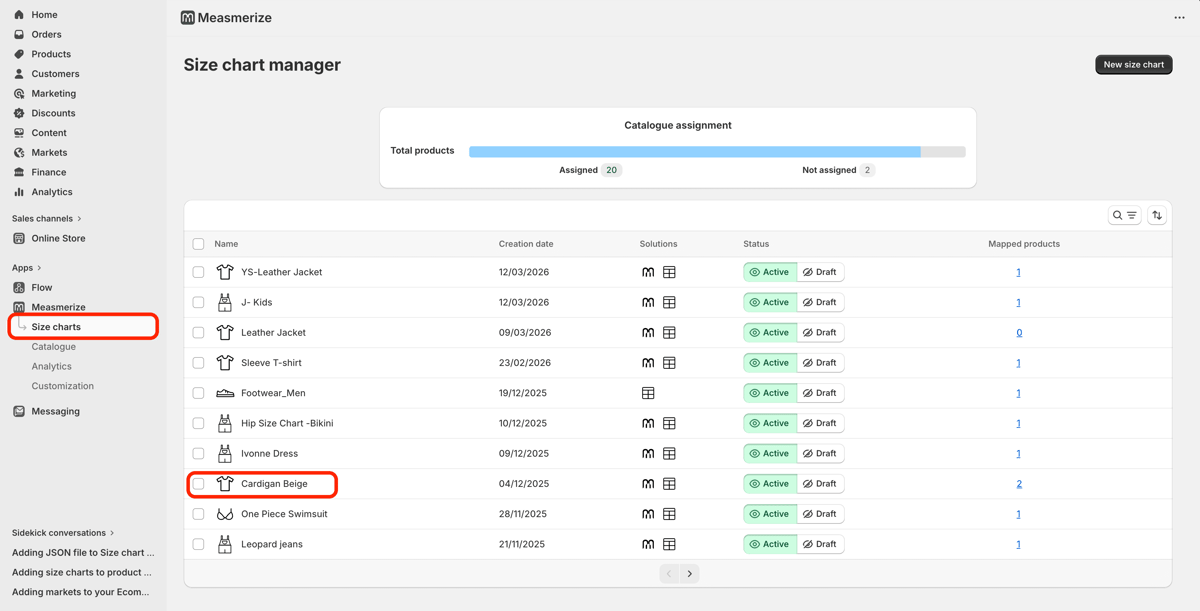
- Step 1: Select your size chart
- Login to your Measmerize Dashboard
- Open the Size Chart manager
- Click on the Size chart you want to calibrate
- Step 2 — Access the calibration view
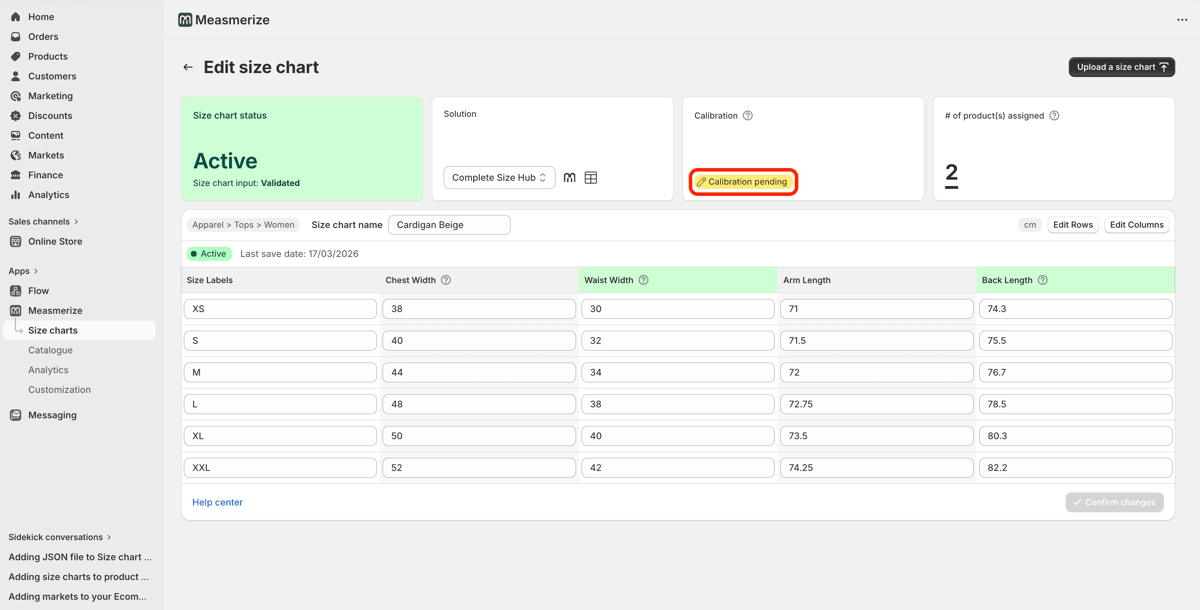
- In the size chart edit view, click Calibration pending
- Step 3 — Add a profile you know
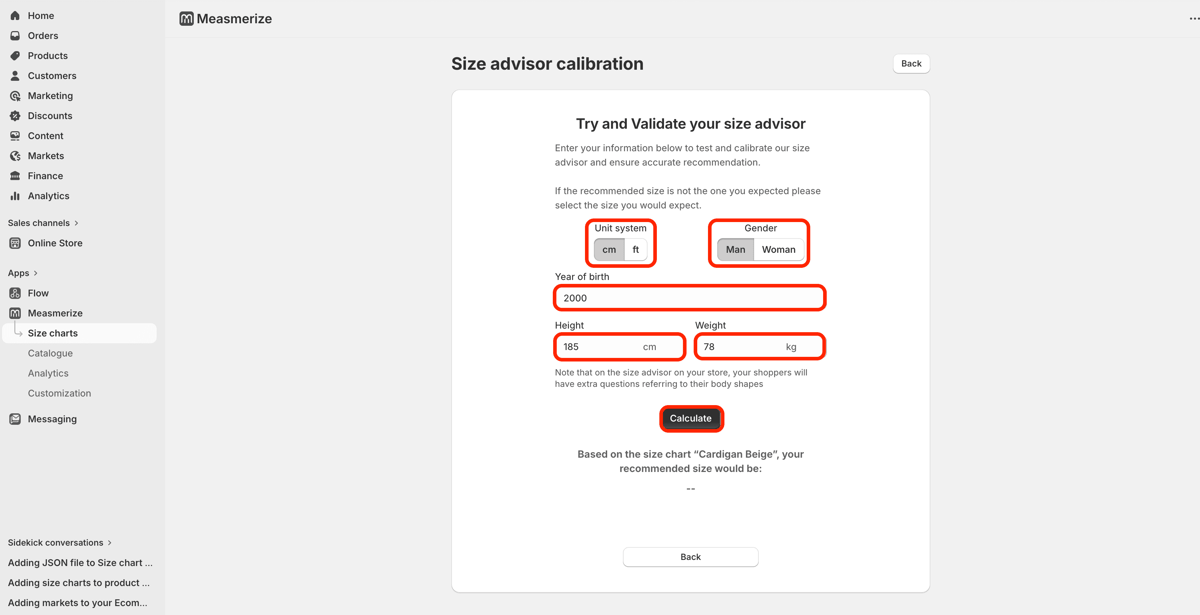
- Choose the Unit system you want to use
- Confirm the test user Gender
- Enter details of the test user:
- Year of Birth
- Height
- Weight
- Click Calculate
- Step 4 — Check the result and adjust
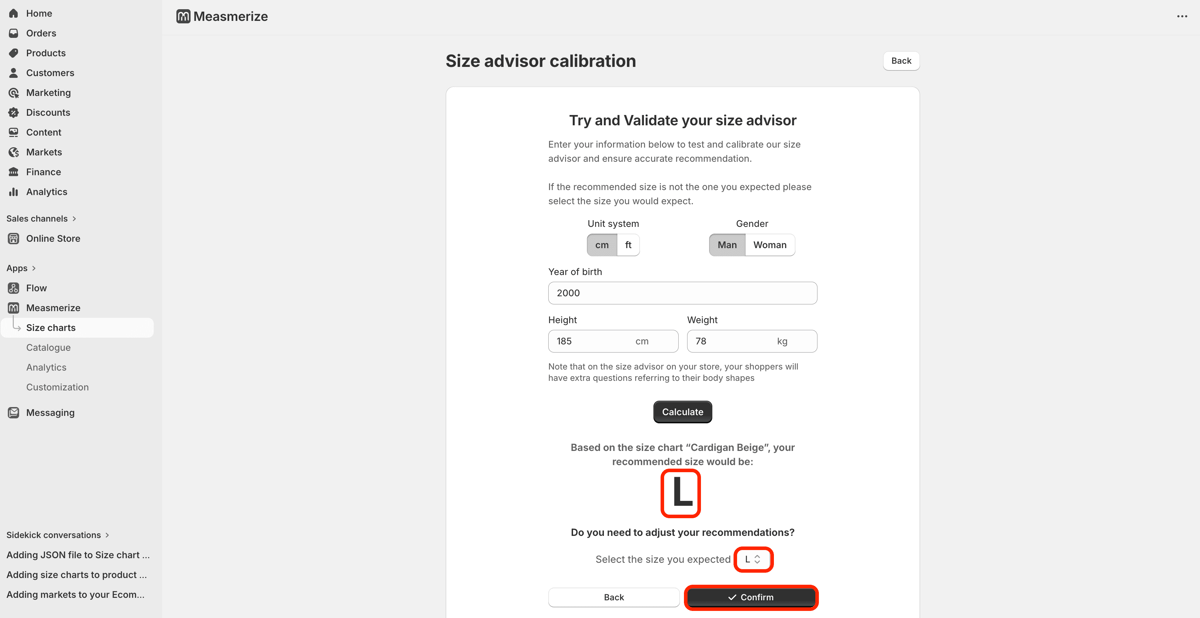
- Check the size that comes out
- if this is what you expected click Confirm
- if you feel the recommendation need adjustment, simply select the expected size in the drop down and click Confirm
- Check the size that comes out
- Step 5 — Activate the size chart
Once everything looks right, you can validate and go live.
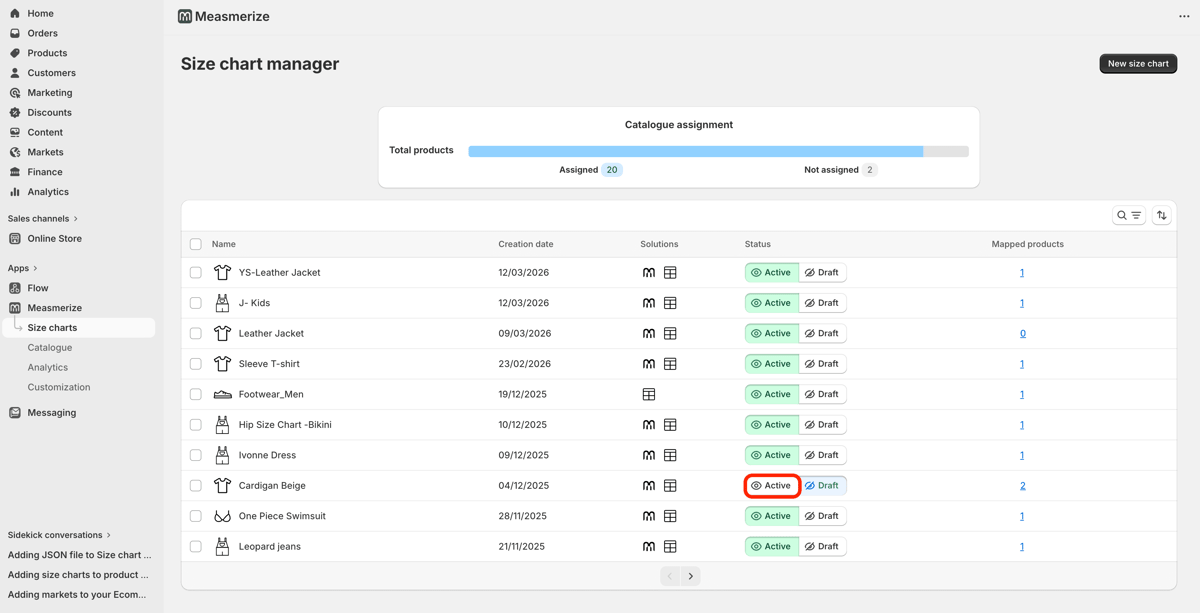
- Go back to your Size Chart manager
- click activate
That’s it, now all the recommendation for the products linked to this size chart will reflect both your data and how you think about fit.
Related reading: why product data beats big data in AI sizing, which covers the data behind these day-one results.
Four calibration mistakes that reach the storefront
Confirming an override that belongs on a different chart. A chart-level correction fixes the profile in front of you and shifts every other product on that chart at the same time. Split before you correct.
Treating one chart per gender as enough. Starting from a single women's apparel chart is normal. Launching on just one is a decision to average across products that might fit differently.
Skipping re-calibration after a chart edit. Charts change between seasons. A grade changes or a fit might get updated. The recommendation follows the chart, so an uncalibrated edit changes what every shopper on those products is shown.
Watching range and ignoring proportion. When Measmerize runs its data diagnostic during enterprise onboarding, part of the work is checking whether a brand's proportions (shoulder to chest, chest to waist, waist to hips, …) match the population it sells to, or match one fit model who doesn't represent the customer base. On self-service you can approximate this. Compare your grade rules against your returns data by size and look for a size returned disproportionately in one direction.
Validating your calibration against real orders
Calibration before launch is an informed estimate. The first 30 days of real orders tell you whether it held. Start with recommended size versus purchased size.
Where a shopper received a recommendation and bought something else, you have a direct disagreement between your calibration and a real customer's judgment. A handful of these issues might be noise, but a consistent one-size gap on a specific product or chart is worth investigating.
Then look at size and fit return reasons by product. Once returns arrive, the algorithm fine-tunes itself. A dress returned repeatedly as too big causes the algorithm to increase the measurements it holds for that dress, so it recommends a smaller size on average. Your job is to spot when one product generates a pattern the chart can't explain, which usually means the product data was wrong, rather than the recommendation.
Last, check whether anyone is using the recommendation. A perfectly calibrated recommendation nobody opens moves nothing. Across Measmerize's client base, 15% to 25% of a client's total ecommerce sales run through a size recommendation, and 75% to 90% of shoppers who open the tool complete it. If your completion rate sits inside that band, but your open rate is well below that threshold, the problem is placement and visibility on the product page.
Put a reminder in the calendar for day 30, and again after your next collection upload.
The Measmerize Advantage: Solving the Day-One Accuracy Problem
Every size advisor gets accurate eventually. The question worth asking a vendor is what happens in the months before that accuracy lands.
Tools built mainly on purchase and return history improve only as history accumulates, so they restart close to zero for every new product. For a brand with short SKU life cycles or a catalog that turns over each season, that's a structural problem.
Measmerize starts from the physical relationship between the garment and the body. It builds a body model for the shopper from a questionnaire that takes under a minute, or from an optional body scan, compares that model against the product's own measurements, and improves from there with sales and returns data.
Calibration exists because of that design. It's where your merchandising team's knowledge of how your products fit gets written into the recommendation directly, instead of waiting for the market to demonstrate it through returns.
The commercial case follows from getting that right early. Measmerize reports conversion rate increases of 3 to 9 times among shoppers who engage with the tool compared with those who don't, average order value around 10% higher, and up to 40% fewer returns among shoppers who follow the recommendation. It's the gap in size and fit return rate between shoppers who followed a recommendation and shoppers who didn't.
On Shopify or Shopify Plus: Calibrate every chart before you activate it, then re-run your golden profiles on each collection upload. Start in the Measmerize Shopify app.
Running an enterprise storefront: The data diagnostic, SKU-level scoring, and physical product assessment happen on the Measmerize side before go-live - no work required by your team. Book a conversation to see what that looks like against your scenario.
Try it for yourself
If you’re working on your size charts, the easiest way to get comfortable with calibration is to try it on a real product. The Measmerize app lets you run these checks directly, using your own size charts and a few reference profiles you already know.
It doesn’t take long, and it quickly gives you a feel for how the recommendations behave before going live.
→ You can explore it directly in the Measmerize Shopify app